
Open the workflow in Workflows and read it top to bottom, or click Dry run to have SageAI walk you through it without changing anything.
Run workflow on a project is not a dry run. It sends real emails now and schedules the rest, so use it only when you mean it. Only workflows that are on can be run this way.
Read the flow
- Open Workflows. It's under Settings, then Emails & automation. The list groups them as Running and Built, but switched off, and each card shows its trigger and steps in a row, with a LIVE or OFF chip.
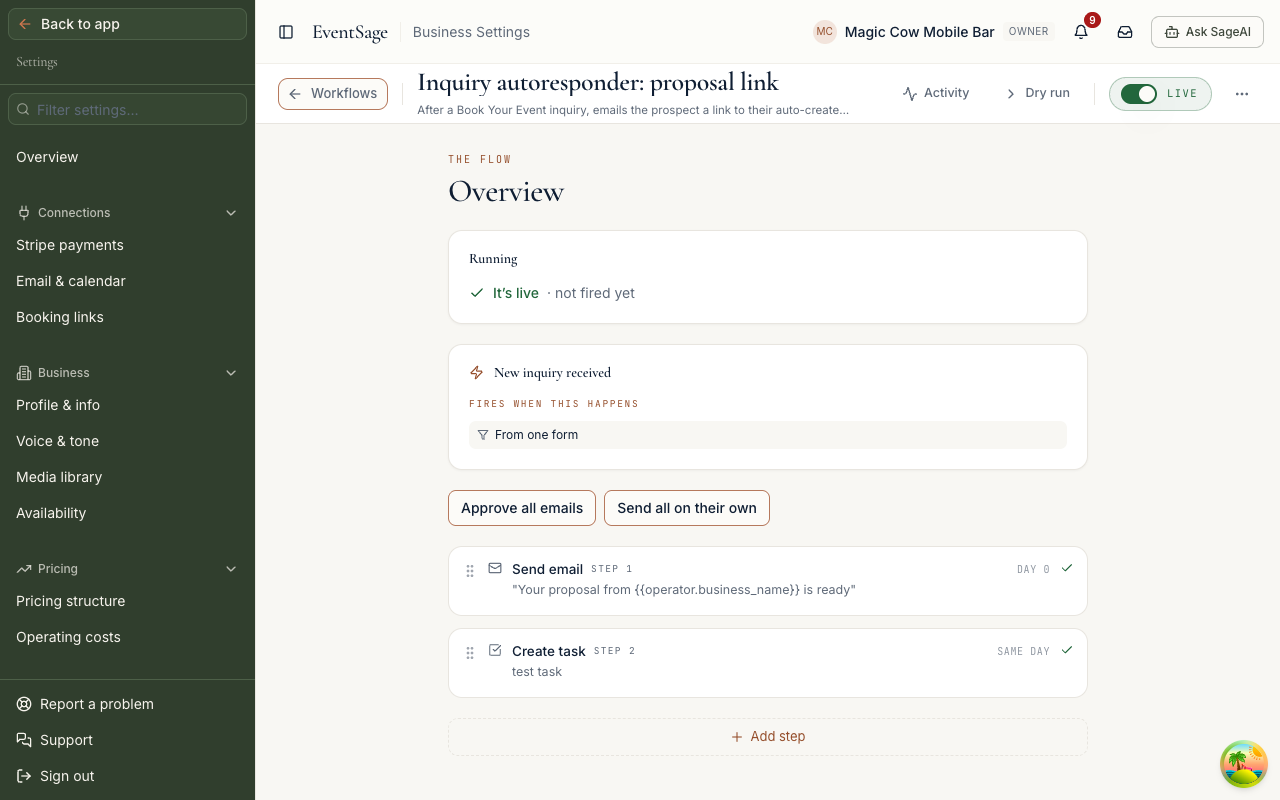
- Click a workflow to open its builder. It opens on The flow, an overview.
- Read the first card. It says whether the workflow is live.
- Read the trigger card. Fires when this happens names what starts it, like "New inquiry received".
- Read each step in order, Step 1, Step 2 and so on. Each has a day count like DAY 0 or SAME DAY. A step can send an email, create a task, send a form, or split into a yes path and a no path.
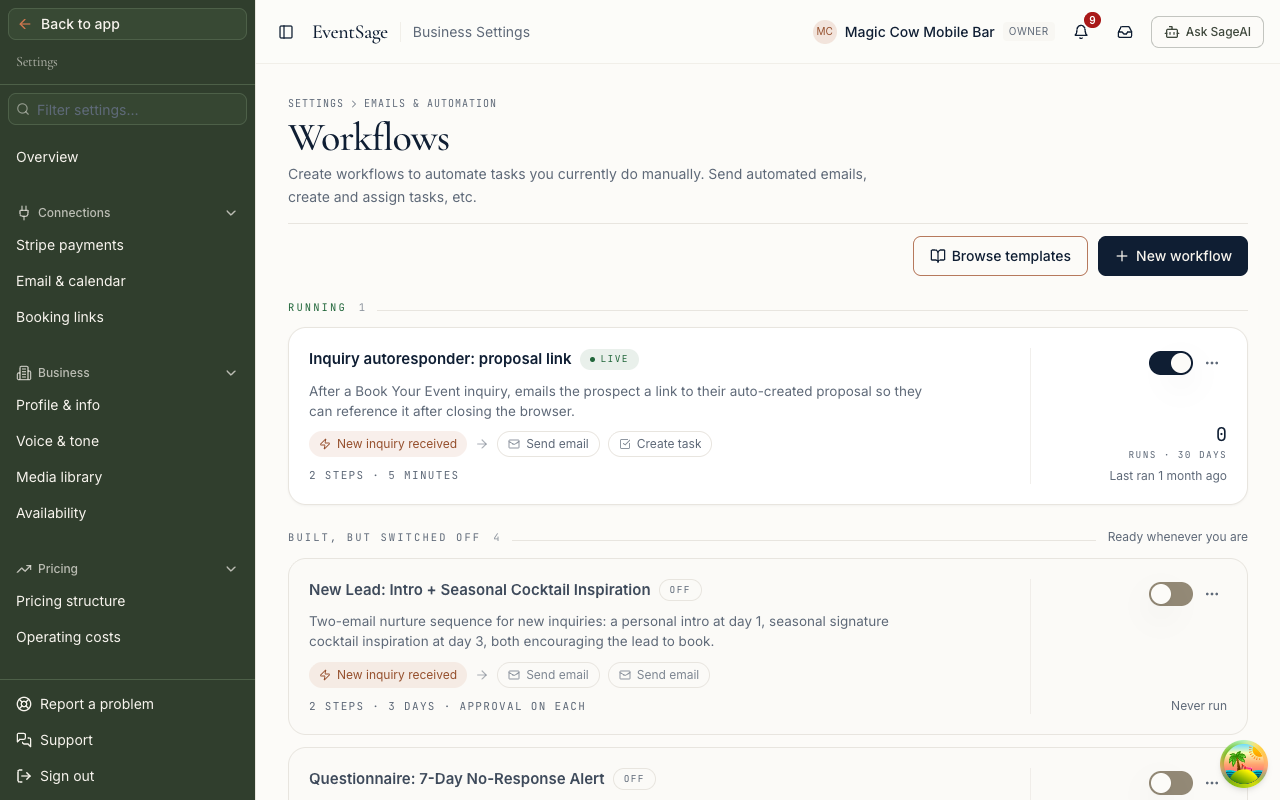
Two buttons sit above the steps. Approve all emails makes the emails wait for you before they send, and Send all on their own lets them go without a check. A workflow that waits for you says "Approval on each" on the list, and its emails wait in the Approvals folder of your Inbox until you send them.
Ask SageAI for a dry run
Click Dry run in the top bar, beside Activity. It opens the SageAI chat with this already typed in. You can read it, then send it.
Walk me through my automation step by step, as a dry run: what starts it, when each step would fire, and what each one does. Don't change anything.
The dry run is a conversation, and the prompt asks SageAI not to change anything.
See who it would reach
For an automation that starts a number of days before or after a date, Preview firings lists which projects it would fire for. It is only a list. Close the preview if that is all you wanted. Activate workflow in the preview turns the automation on for real.
Turn it on or off
The switch in the top bar reads LIVE or OFF. The list also has a switch on each row. A new automation shows Draft · never run until it has run once.
- It won't turn on without a trigger and at least one step. The message reads "Add a trigger and at least one step before turning it on."
- Turning one off while items are still pending asks you to confirm.
If an email went out that you didn't expect
- Check the chip. A workflow showing LIVE is sending.
- Check the approval setting. If you chose Send all on their own, emails go without a check.
- Check the Approvals folder. In your Inbox, emails waiting for you sit there. Approving one sends it.
- Switch it off. Use the switch in the top bar while you read it again.