
Open Bundles and click a bundle. Changes save as you type, and the cost panel on the right shows whether the price covers your costs.
Open a bundle
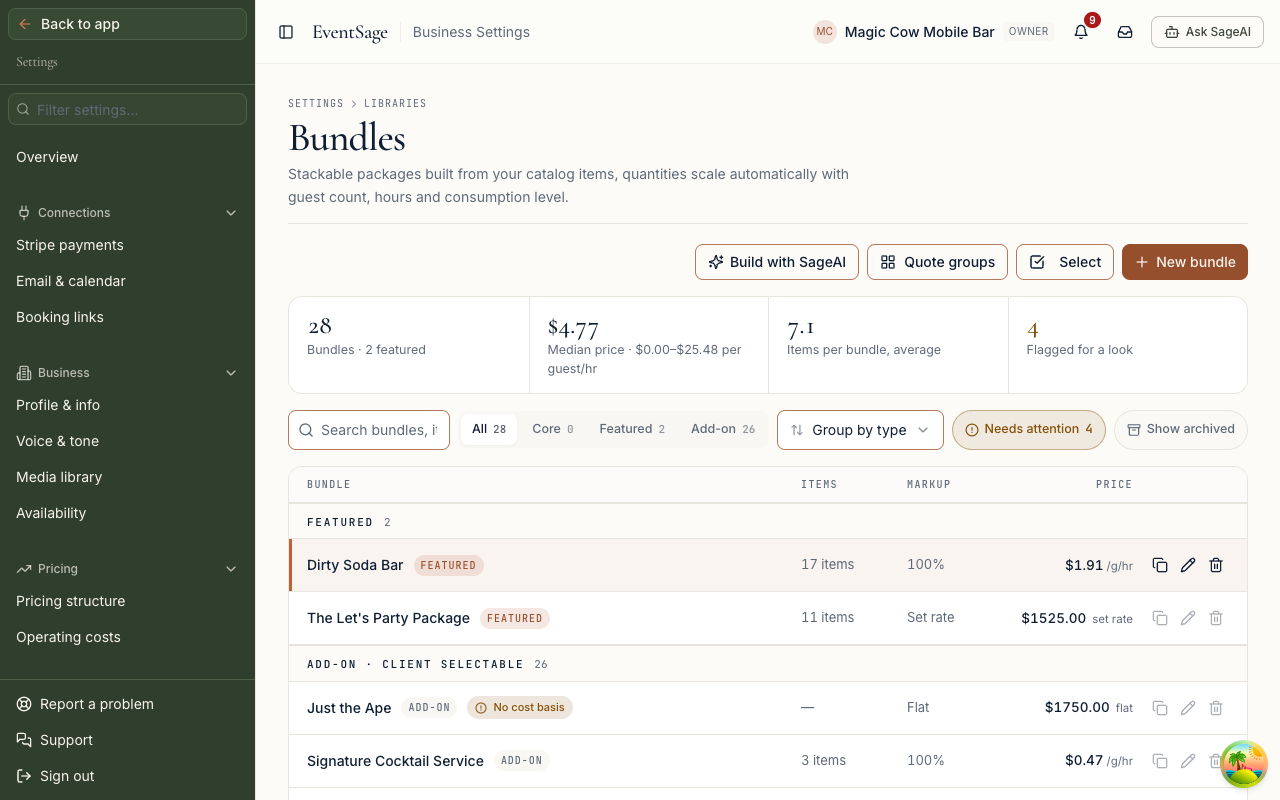
- Open Bundles. It's under Settings, then Libraries.
- Click the bundle's row. The editor opens as a panel on the right.
- Open the Items section.
- Click + Item, + Staff, + Equipment or + Bundle to add a line.
- Click the trash icon on a line to remove it.
- Click Done when you finish.
To start from nothing, click New bundle instead. That one has a Save button, and nothing exists until you click it.
Read the cost panel
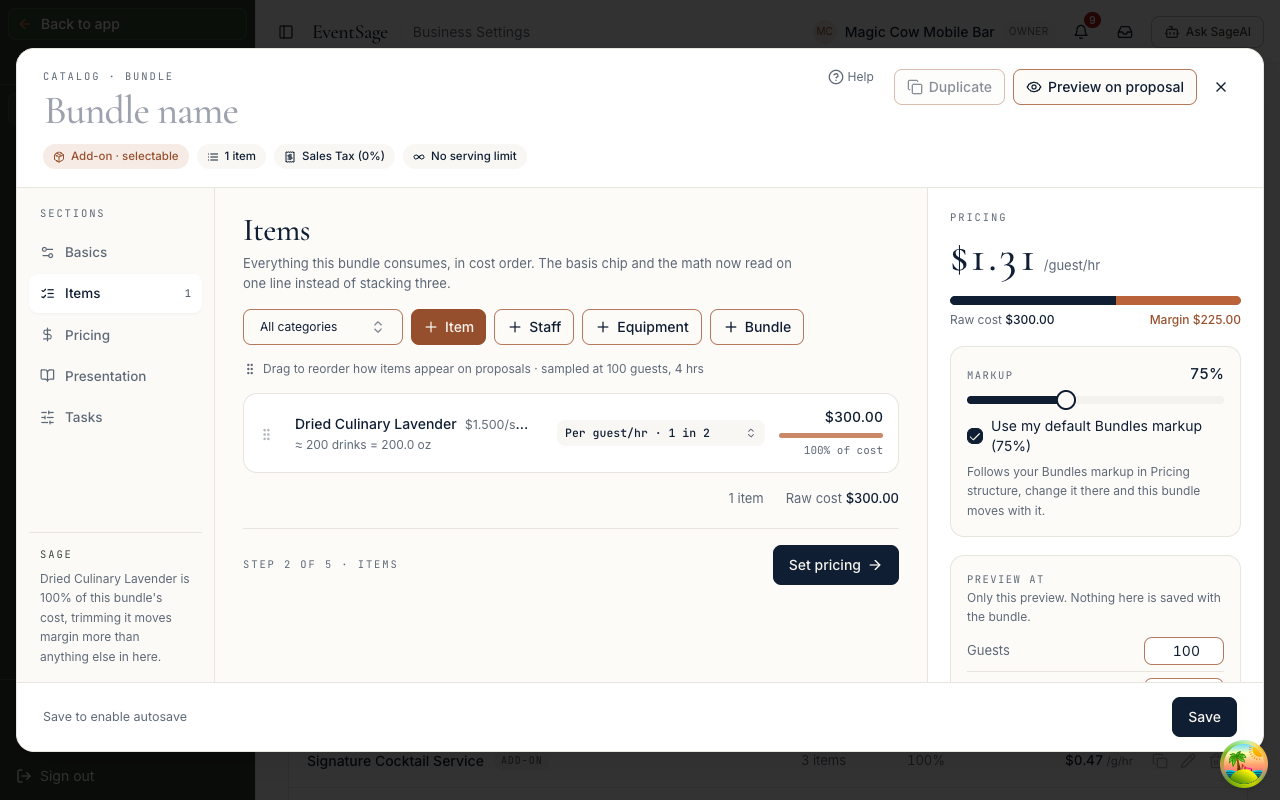
The Pricing panel on the right of the editor shows the price, then a bar split into cost, buffer and margin, then the figures under it.
- Raw cost is what the bundle's items cost you.
- Staff inside is the wages of the staff lines. It only appears when it is above $0.
- Buffer is your contingency buffer on that cost. It appears when the price carries one.
- Margin is what is left. A positive margin means the price covers the cost.
"No itemised cost on file" means the bundle has no costs to compare against yet. Below the figures, the Markup slider shows the markup, and "Use my default Bundles markup" follows the Bundles markup on Pricing structure.
How staff count depends on how the bundle charges. On a Sum of items bundle the wages sit inside the price and earn the bundle's markup. On a Flat fee or Scalable set rate bundle the staff are inside the price. Their wages are not charged a second time. They come out of your margin.
The Preview at guest count and hours only change the sample you're looking at. They aren't saved anywhere.
Ask SageAI to check it
On a saved bundle, click Is this price covering my costs? under the panel. SageAI reads the saved bundle and compares what it charges with what its contents cost at the sizes you actually sell. The button is greyed out while a save is still running.
If the margin is red or negative
Check these in order.
- Raise the markup. Move the Markup slider, or untick "Use my default Bundles markup" and move the slider for this bundle.
- Check the staff lines. A role with no rate on file prices at $0, which makes the bundle look more profitable than it is. Set one in Staff roles & rates.
- Check the pricing mode. On a Flat fee bundle, any staff inside it come out of your margin.
If staff cost isn't showing
Staff inside is a separate figure from Raw cost, so compare against both. If it is missing, check these in order.
- There is no staff line. Add one with + Staff in the Items section.
- The role has no rate on file. Set one in Staff roles & rates.
- The role was deleted. A line pointing at a deleted role is skipped. Pick a role that exists.